Skip to content
UltimateTracker
Tracking

UltimateTracker

Turn Premiere Pro's AI Object Masks and classic masks into Transform keyframes: follow any object, or lock the camera on your subject with Auto Safe-Crop.

PrPremiere Pro

Overview

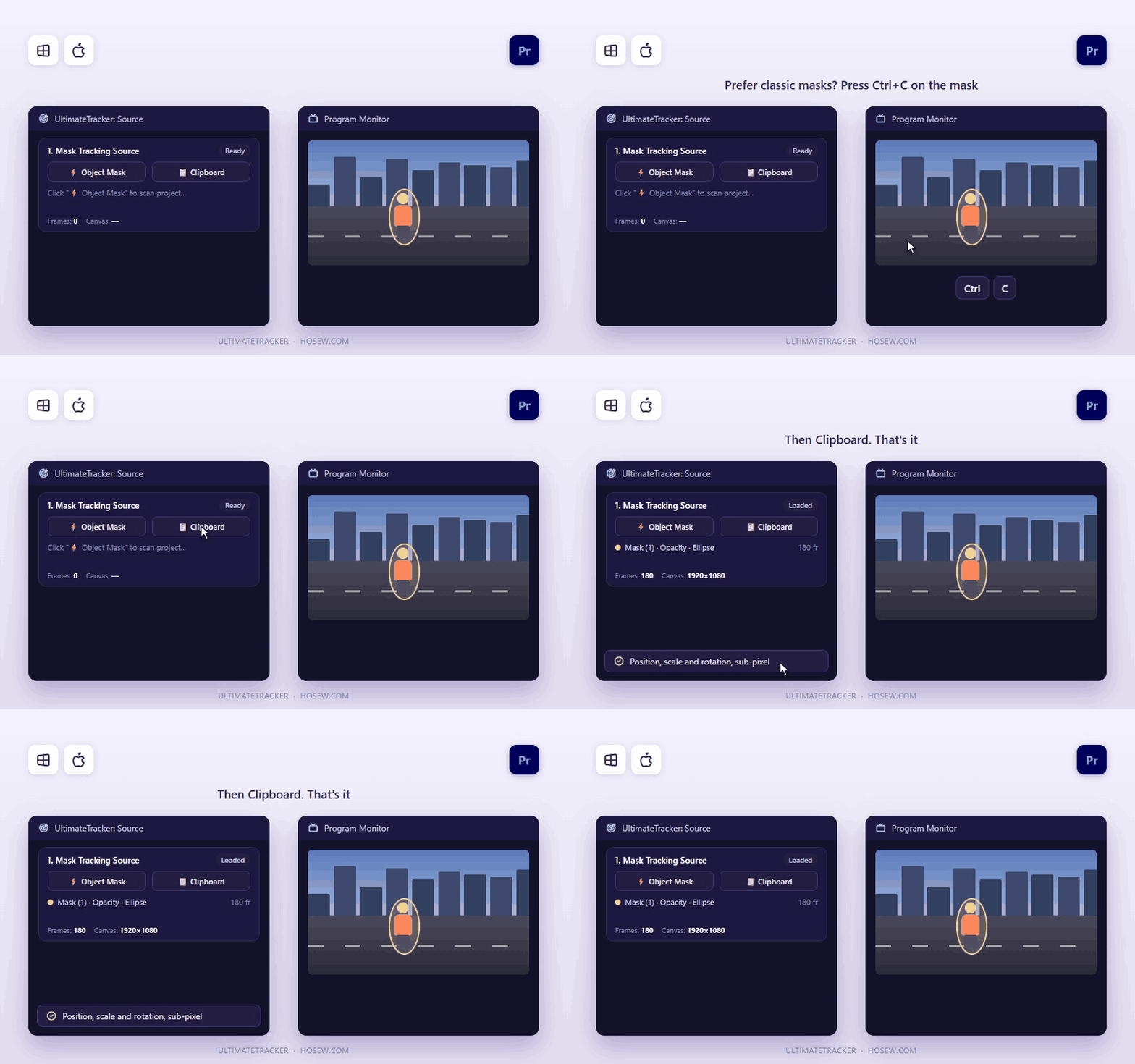
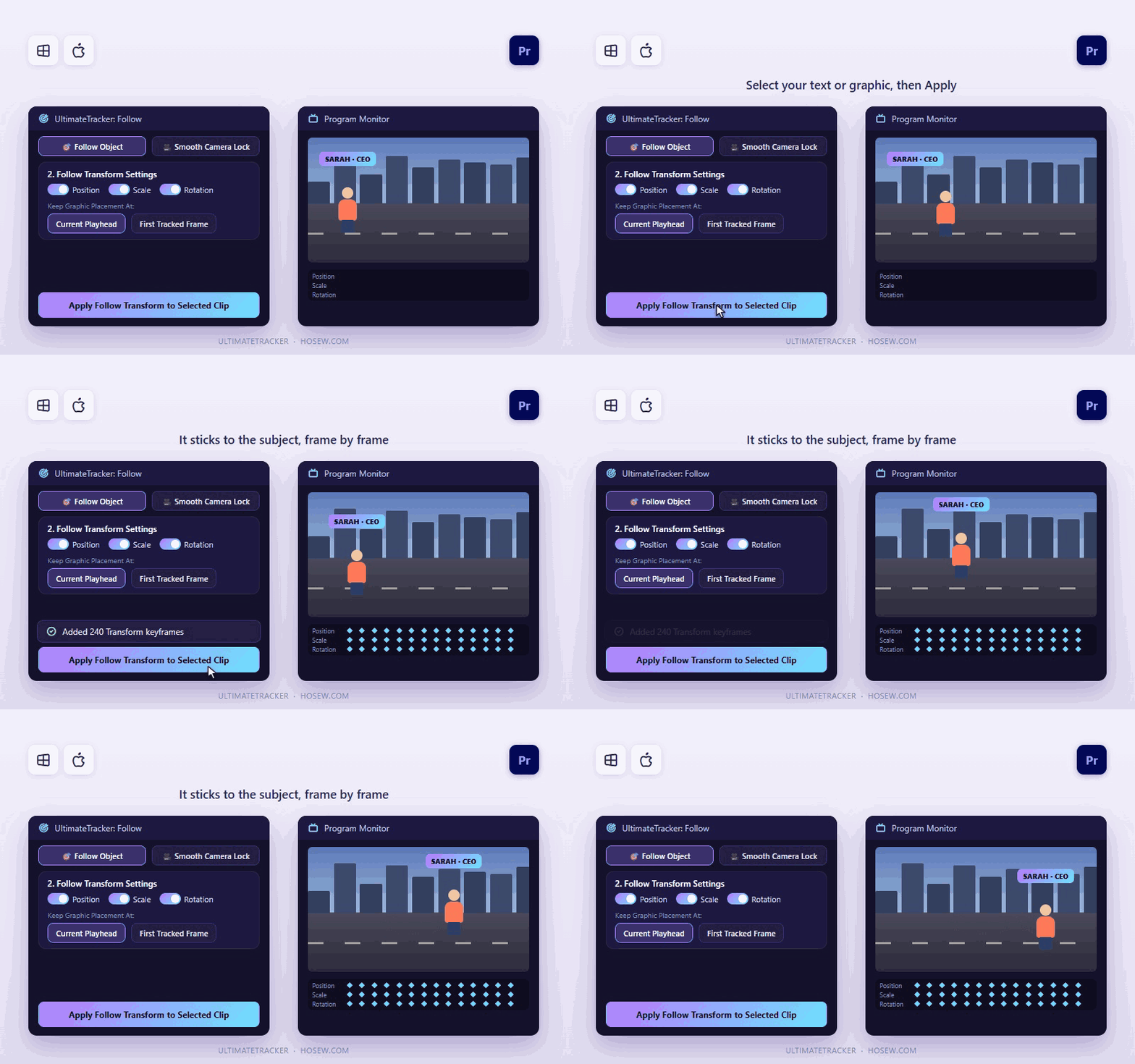
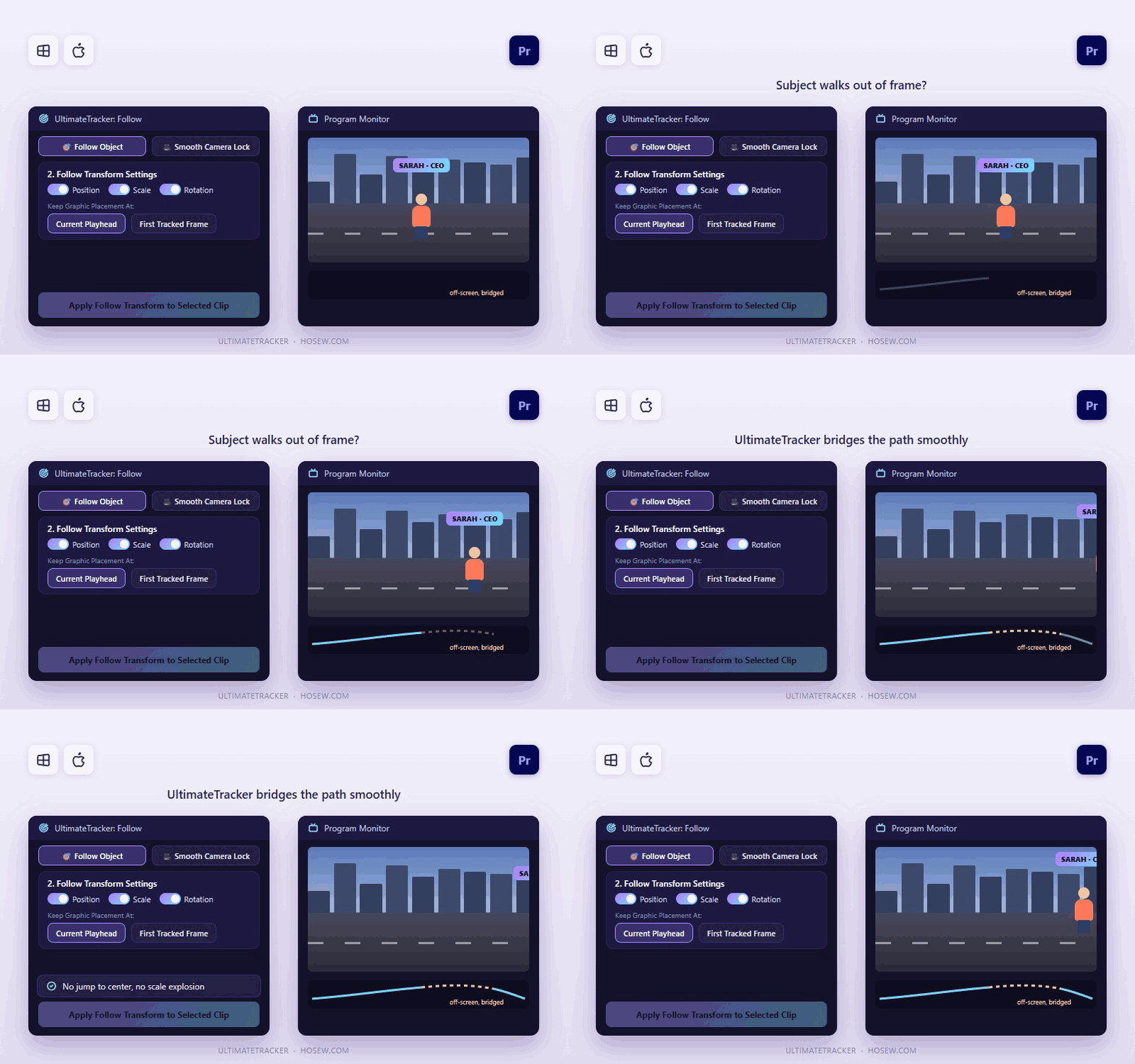
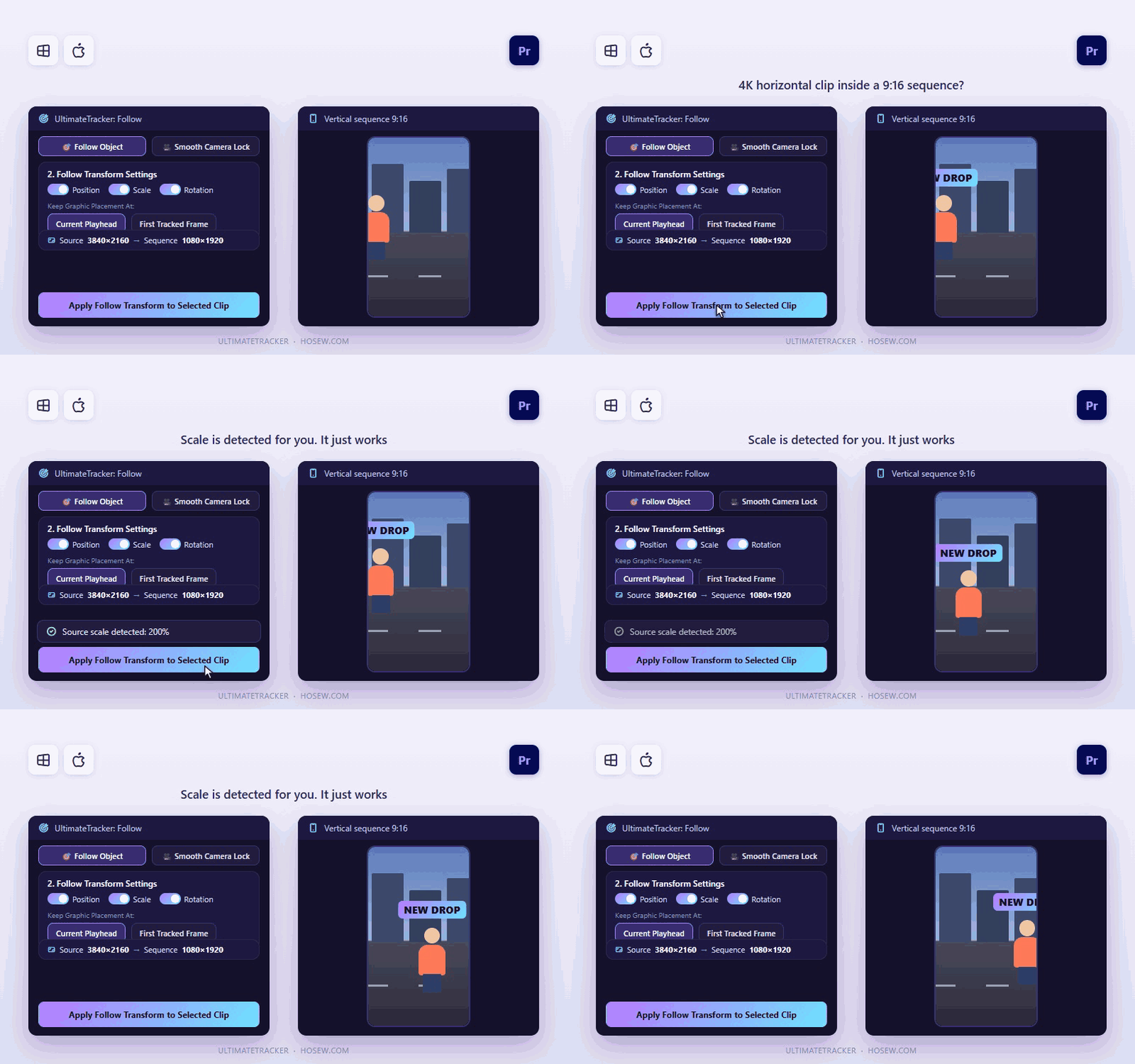
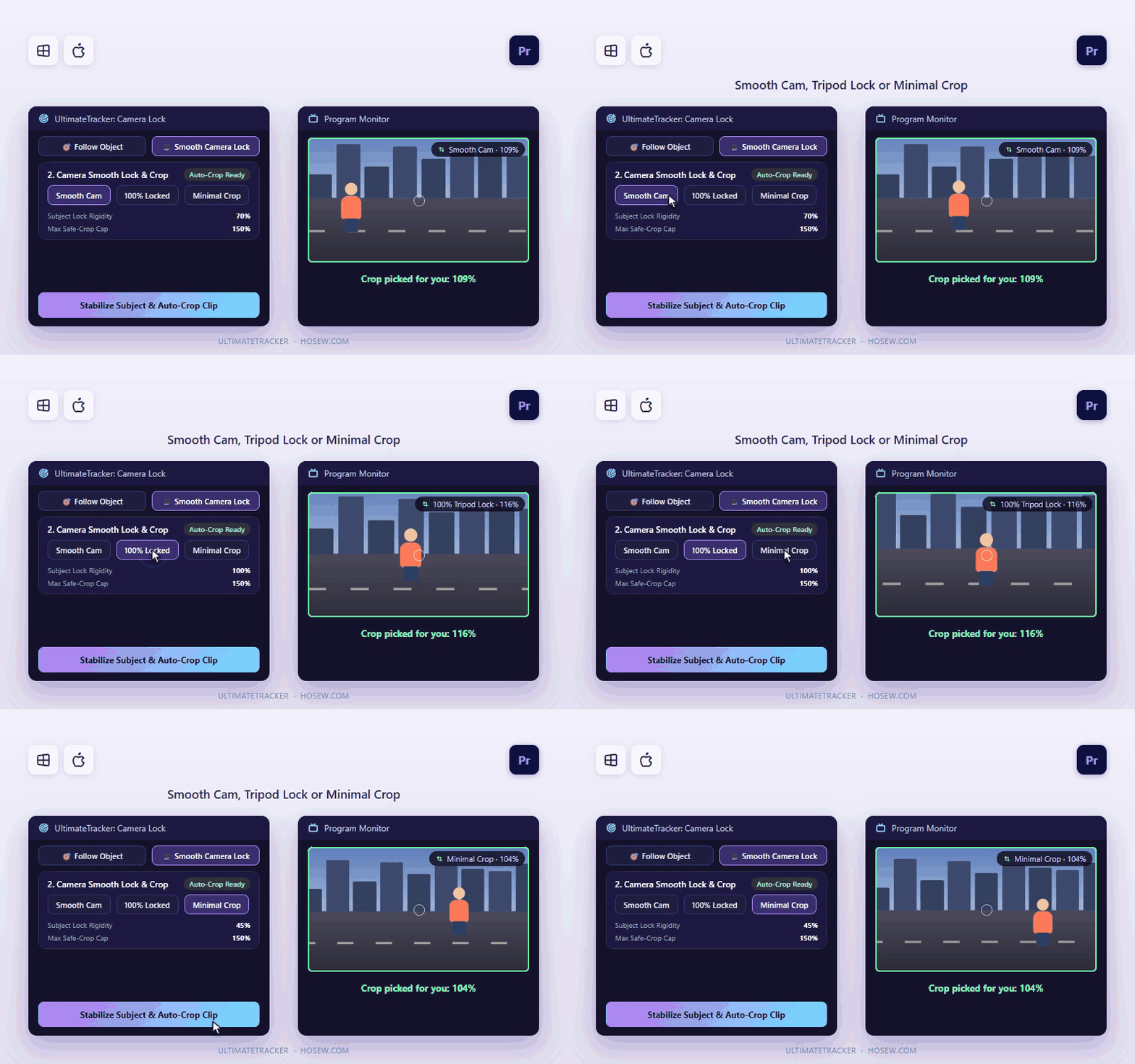
Stop keyframing graphics and camera follow-shots by hand. Premiere Pro's AI Object Mask and classic Opacity/Effect masks track people, faces, hands and products in seconds, but Premiere gives you no way to apply that tracking to another layer (text, callouts, blurs, graphics), or to stabilize the shot around the subject. UltimateTracker bridges that gap in one click. ⚡ Reads your tracked AI Object Masks straight from the project in milliseconds, no copy-paste. When the subject touches the edge or walks out of frame, the path is bridged smoothly: no jumps to the center, no scale explosions. 📋 Prefer classic masks? Press Ctrl+C / Cmd+C on the mask and click Clipboard. 🎯 Follow Object: select your text or graphic and click Apply Follow Transform. A Transform effect is added with frame-accurate Position, Scale and Rotation keyframes. Works with a 4K horizontal clip inside a 9:16 sequence, and the reverse. 🎥 Smooth Camera Lock: lock the camera on your subject, with Auto Safe-Crop that finds the smallest zoom that keeps black edges off every frame. Presets: Smooth Cam, 100% Tripod Lock, Minimal Crop. 🎨 5 studio themes. Windows and macOS, Premiere Pro 2024 or newer. One active device at a time. Free updates within version 1. Built by an editor, for editors.

See it in action

Short clips of the real panel.
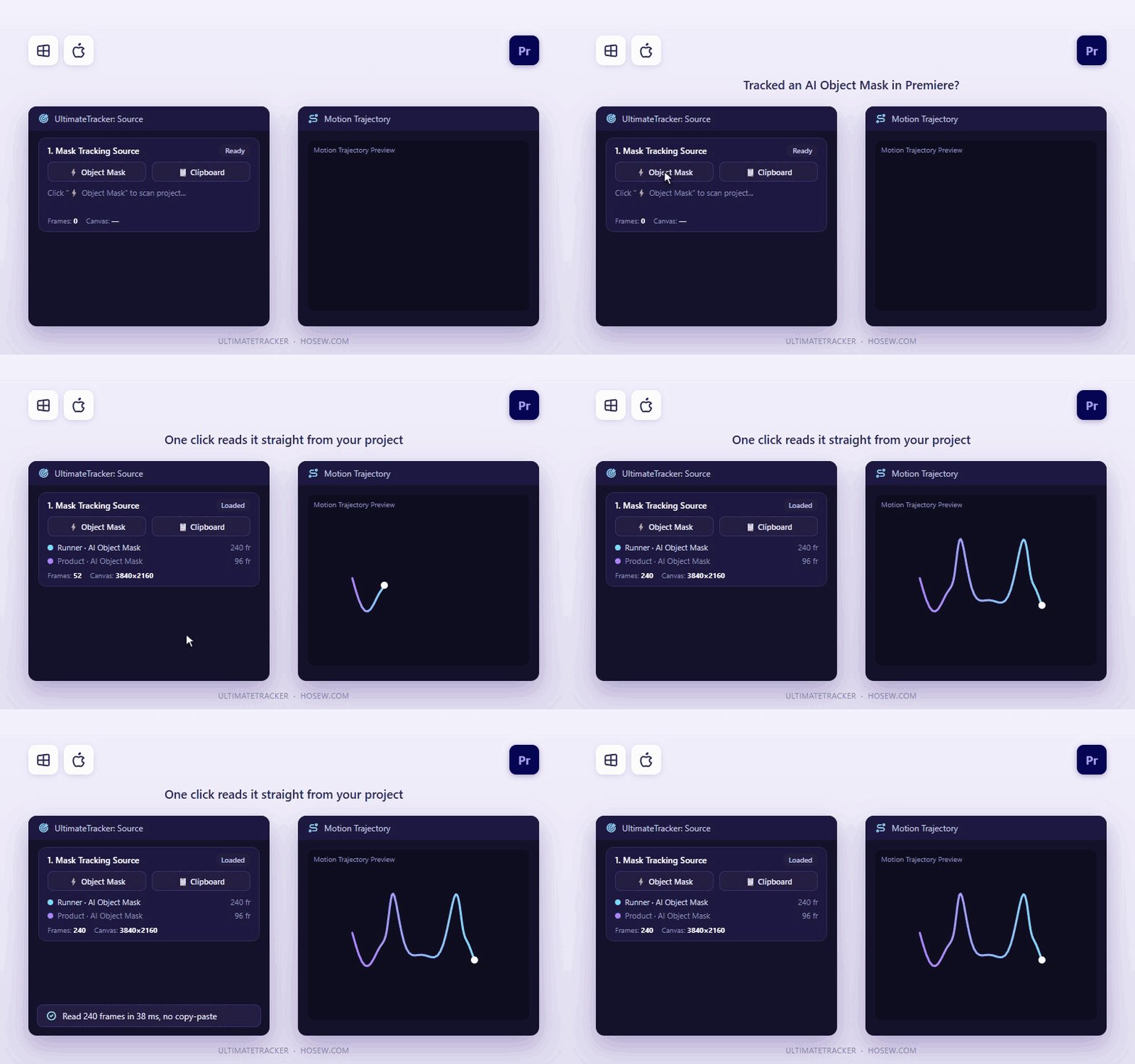
Reads your AI Object Mask in one click
Classic masks: Ctrl+C, then Clipboard
Text and graphics follow the subject
Smooth even when the subject leaves the frame
4K horizontal clip in a 9:16 sequence
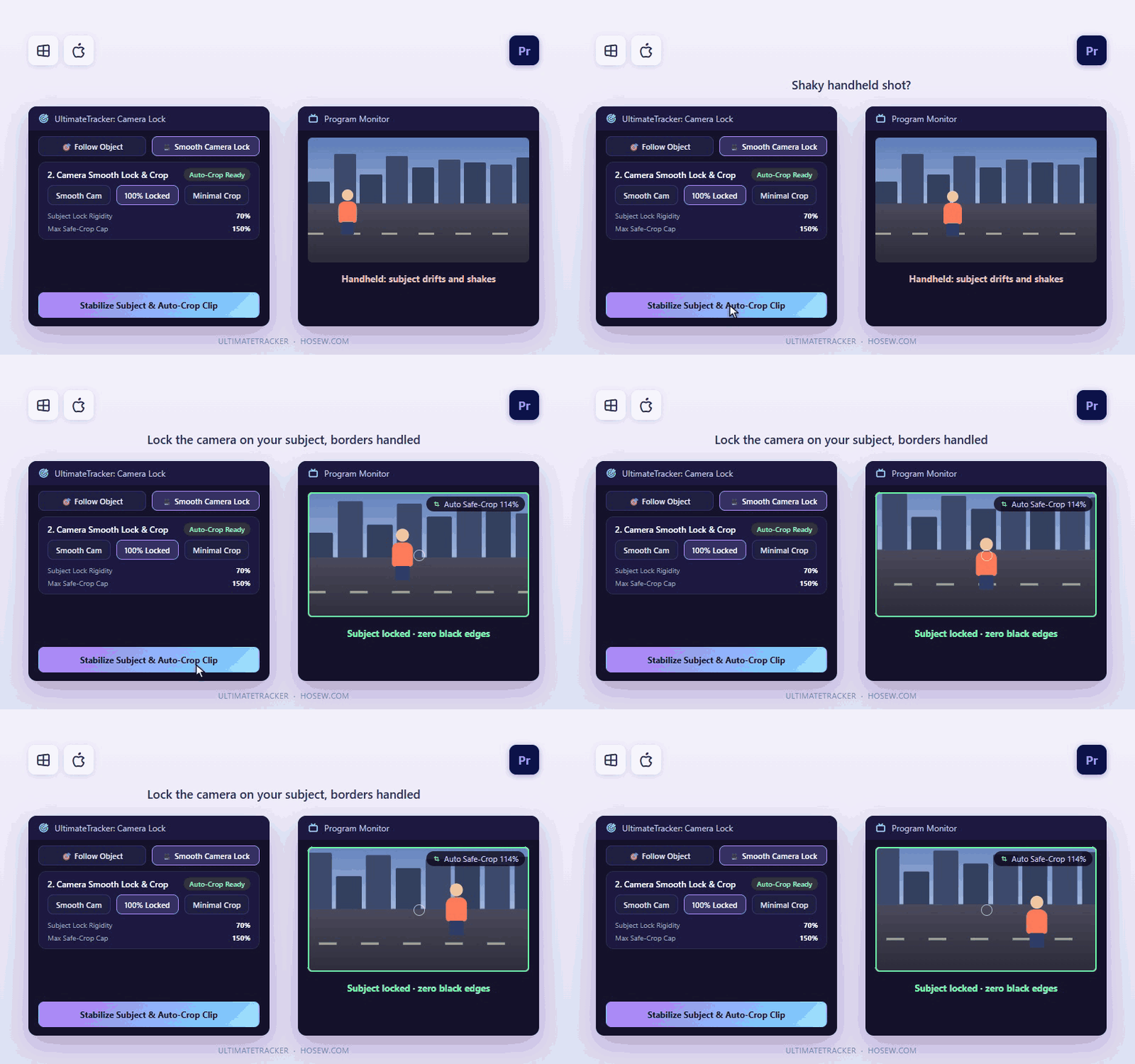
Lock the camera on your subject
Auto Safe-Crop: no black edges
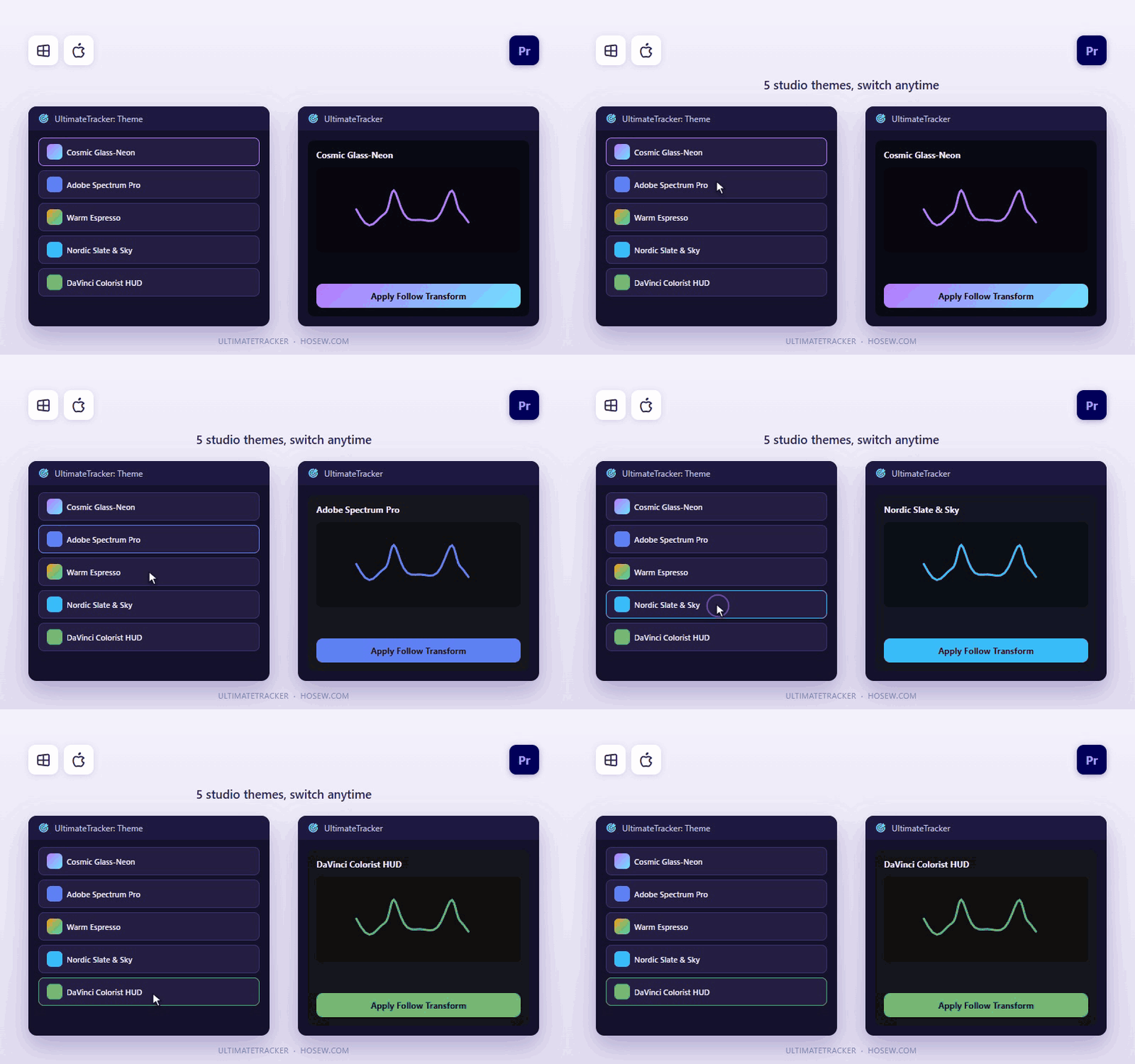
5 studio themes
5 studio themes
Launch offer: $19 instead of $30 (37% off) — limited time.
14-day refund, no questions asked.

Get started in three steps

1

Install the panel

Unzip and run install.bat (Windows) or install.command (Mac). Works with Premiere Pro 2024 and newer.

2

Open UltimateTracker

Restart Premiere Pro, then Window > Extensions > UltimateTracker. Enter your email and licence key once to activate.

3

Grab the mask, then Apply

Click ⚡ Object Mask (or Clipboard for classic masks), select your text or graphic, and click Apply Follow Transform. Or switch to Smooth Camera Lock and stabilize.

Frequently asked

Which systems and versions does it support?+

Windows 10/11 and macOS 11+ (Apple Silicon and Intel), with Premiere Pro 2024 or newer.

Do I need internet?+

Only once, to activate. After that it works offline.

How many computers can I use it on?+

One active device at a time. Sign out inside the plugin or at license.haaxlabs.com/portal to move it to another computer.

Do I get future updates?+

Yes. Updates within version 1 are free and appear in your Gumroad library.

Where do I get help?+

Message support on WhatsApp +20 155 155 3467 or at support@HosEw.com.

Ready to try UltimateTracker?

Get it for $19 instead of $30 while the launch offer lasts — or message us on WhatsApp for an even lower price.

UltimateTracker
$19 USD$30-37%