
Un-Nester
Unnest any nest in Premiere Pro with one click, and keep your effects, look and audio. See the result first, undo any action. 7-day free trial.
Overview
What's included
Everything you get in this pack.
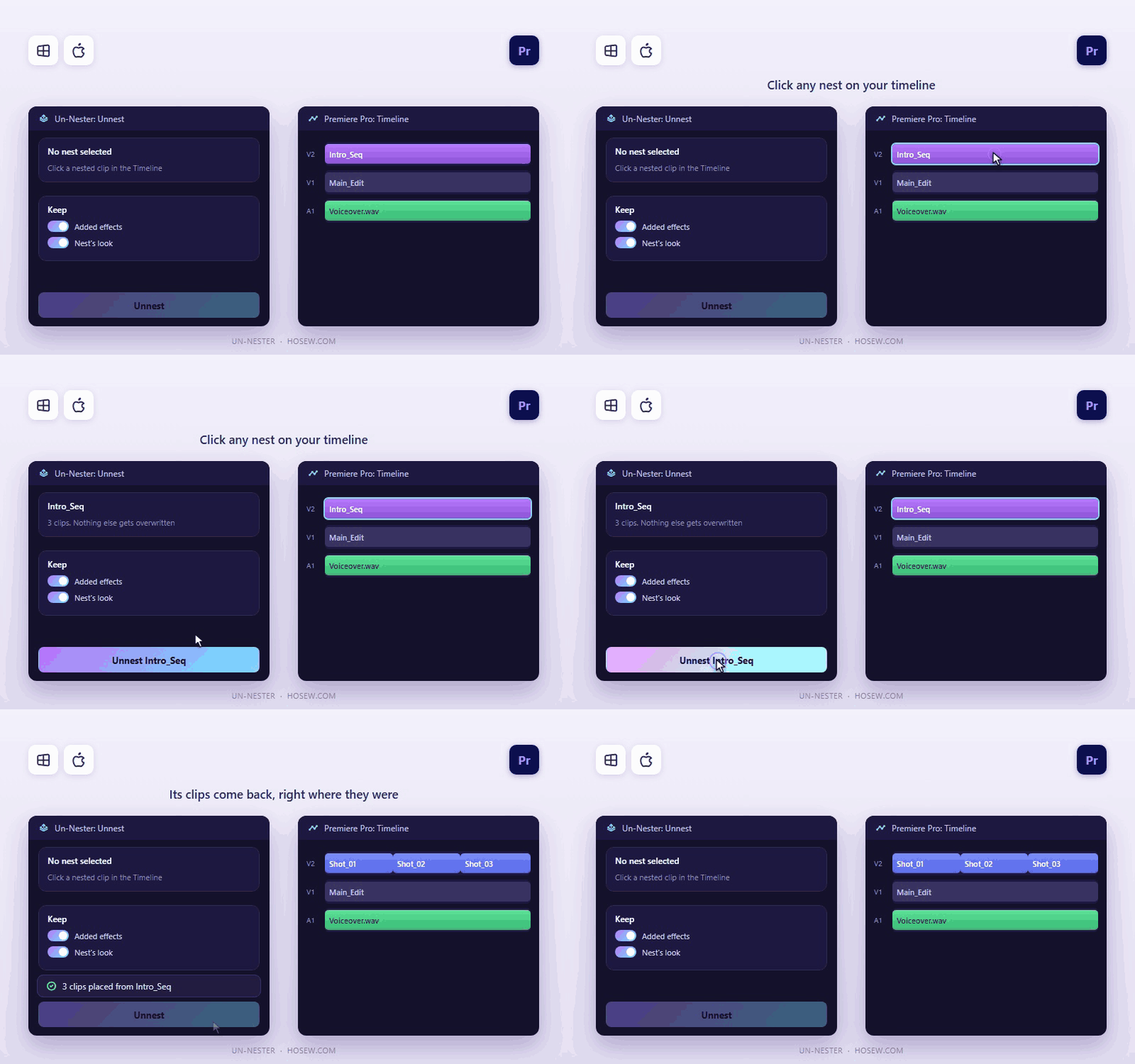
Unnest in one click
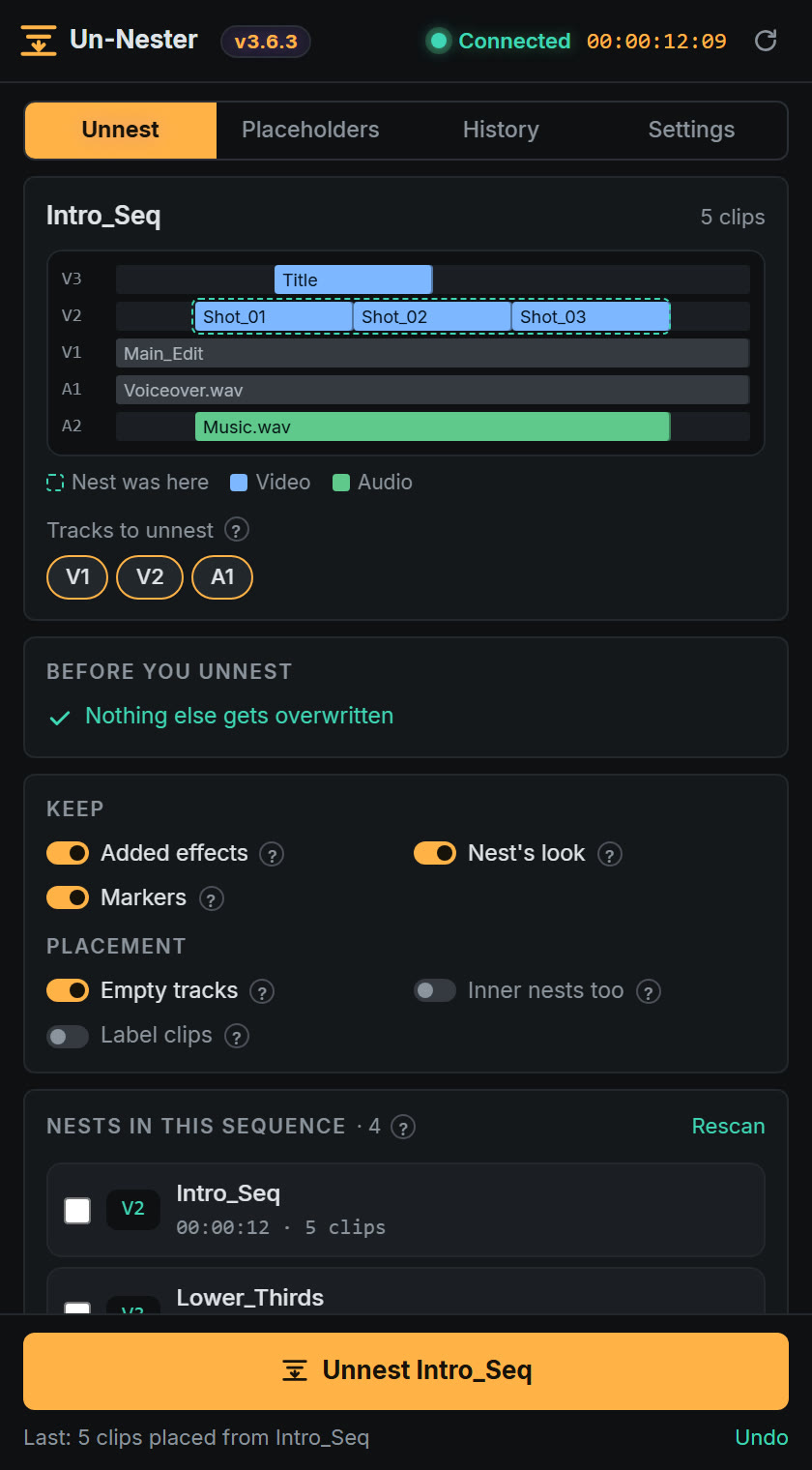
Click any nest and press Unnest. Its clips come back to your timeline exactly where they were, with audio, markers and speed.
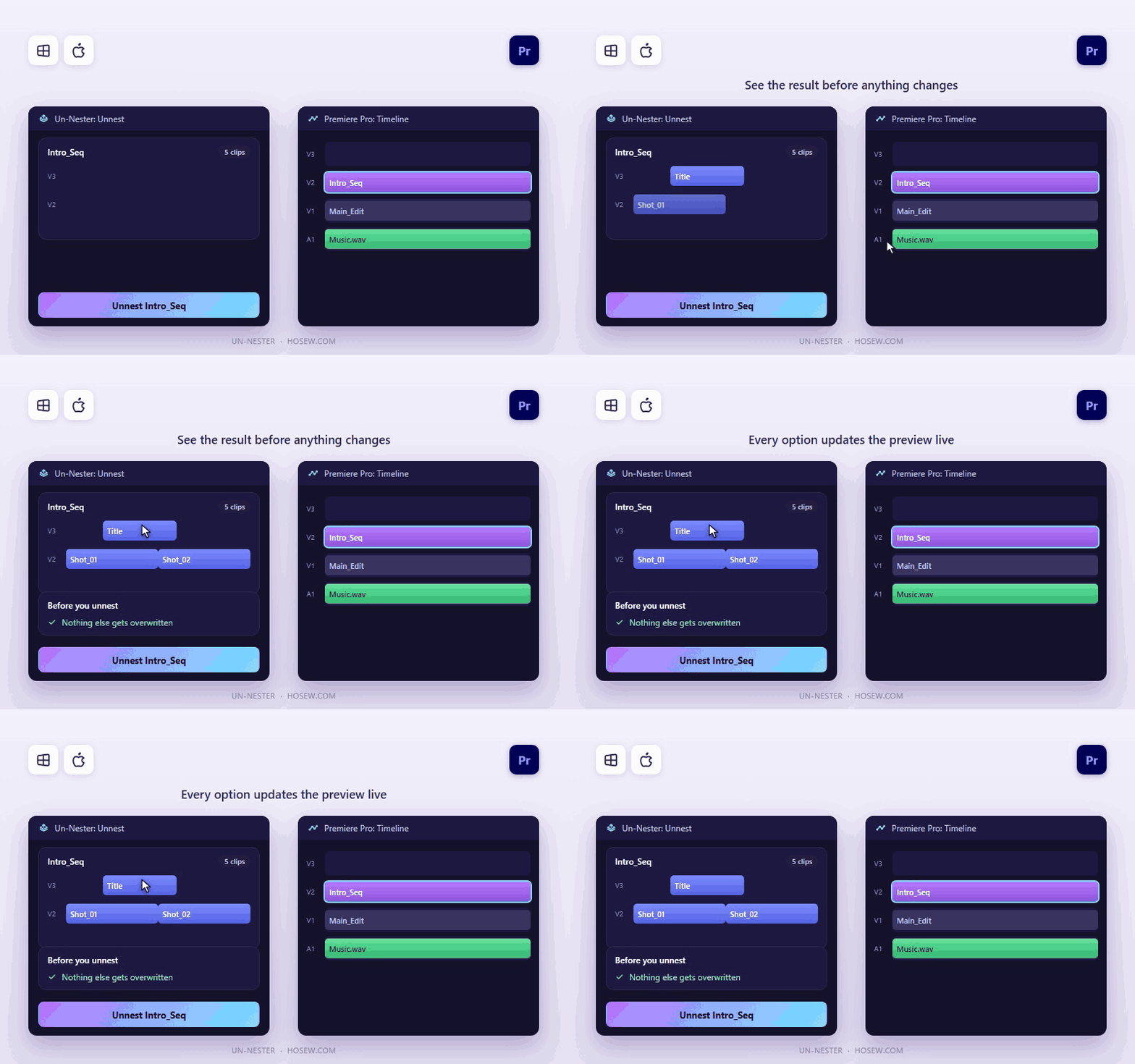
See it before it happens
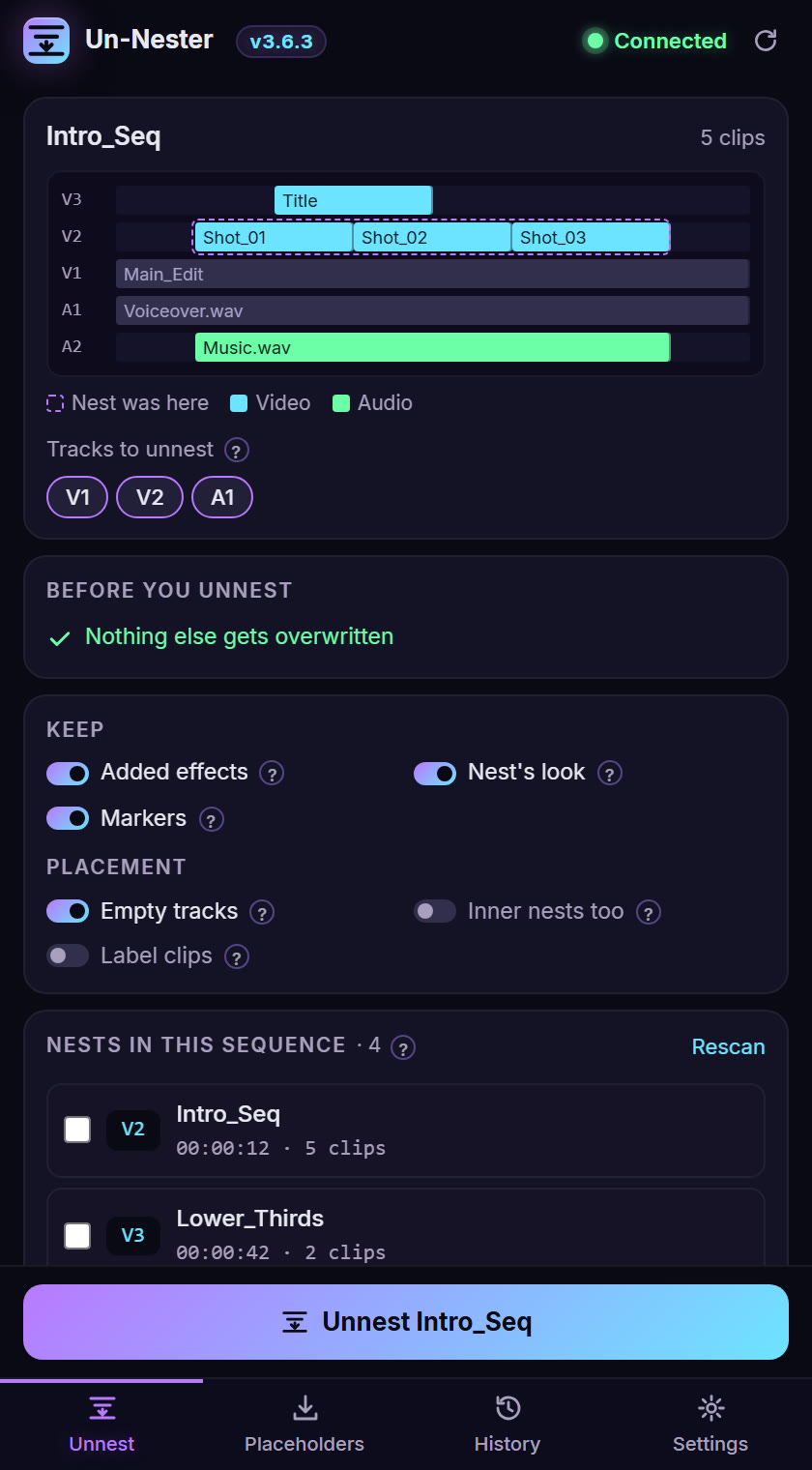
A small timeline shows where every clip will land and warns you if anything would be replaced, before anything changes.
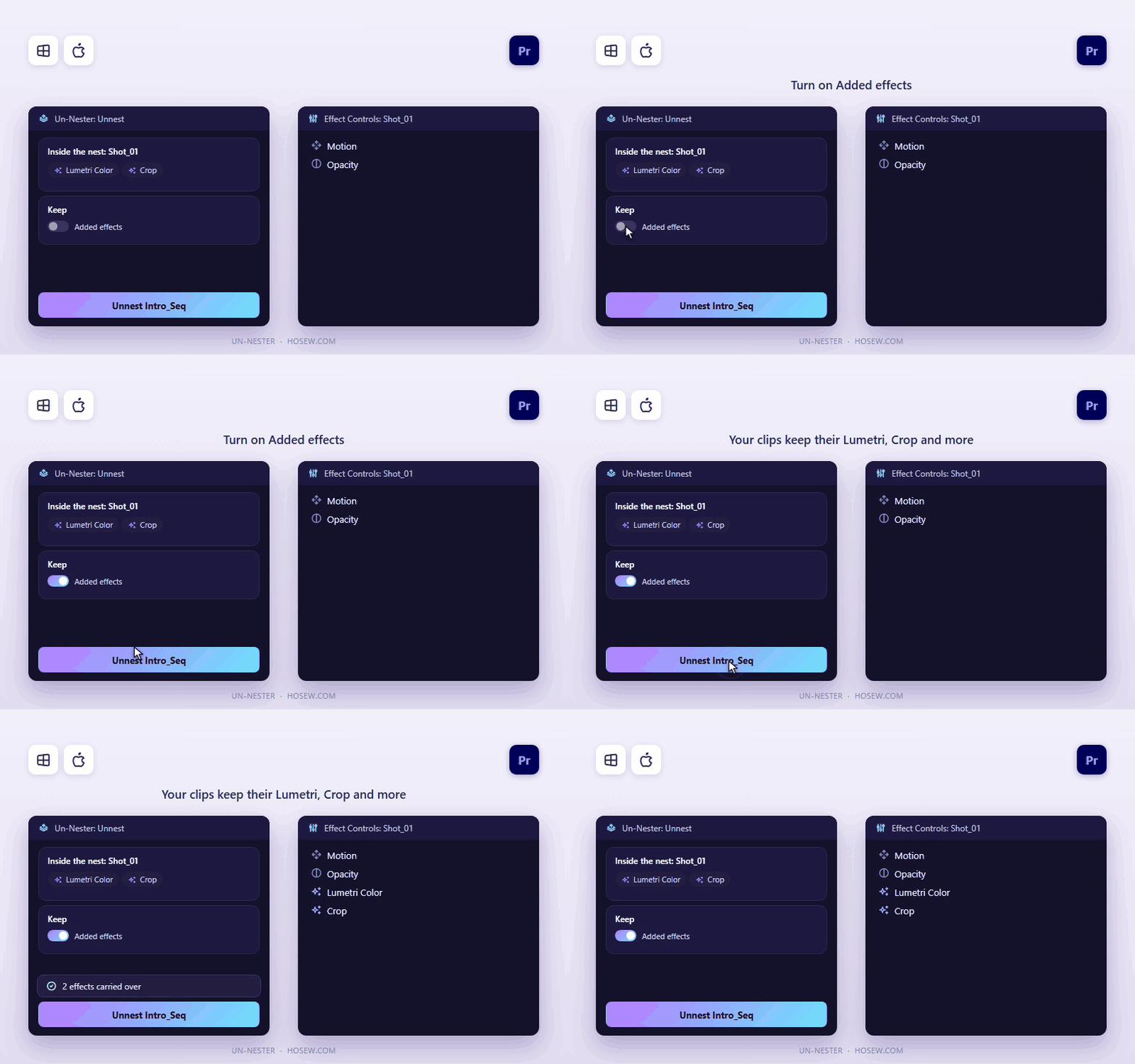
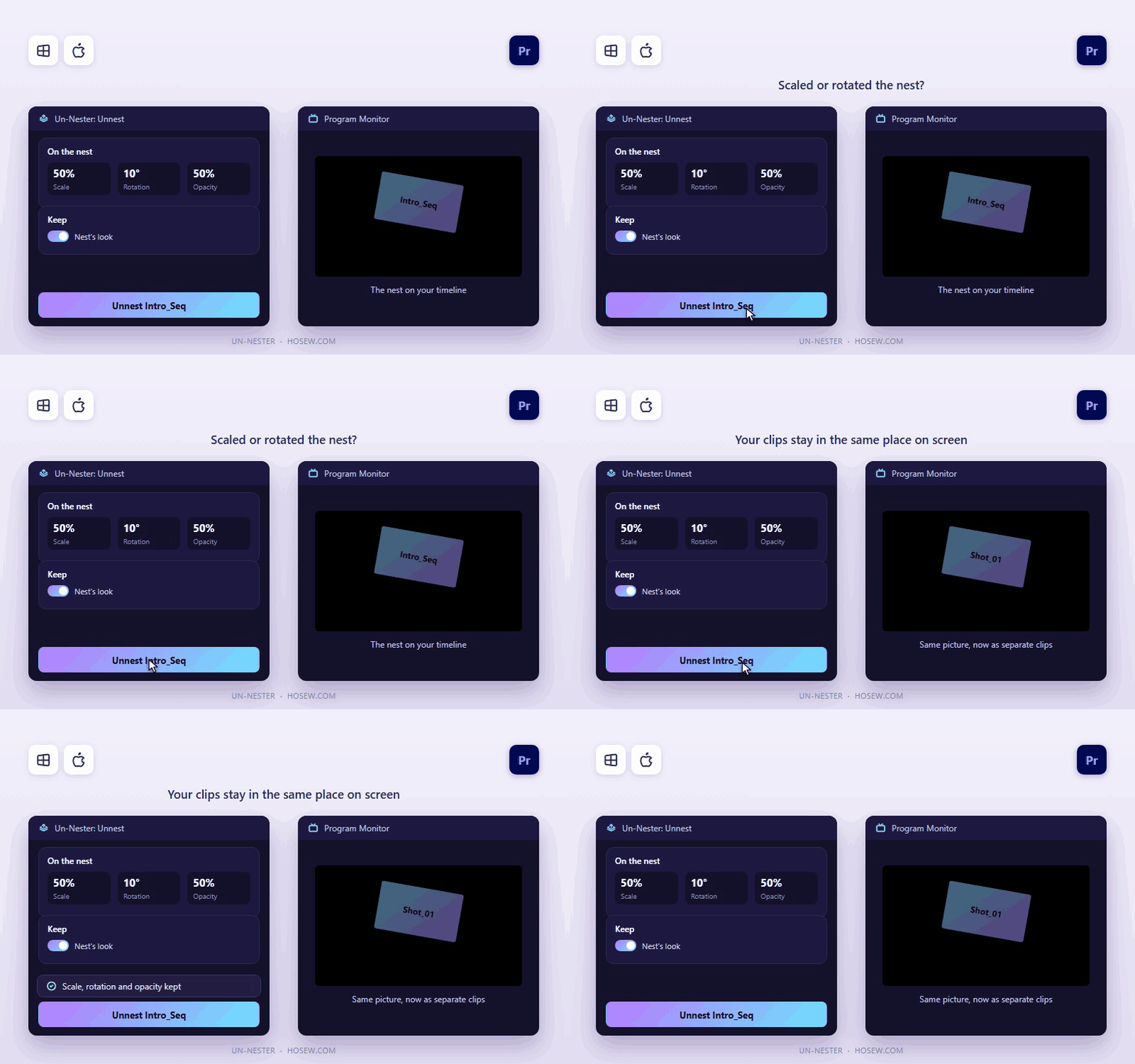
Keep your effects and look
Lumetri, Crop and other effects come out with the clips. The nest's scale, rotation, position, opacity and effects carry over to each clip.
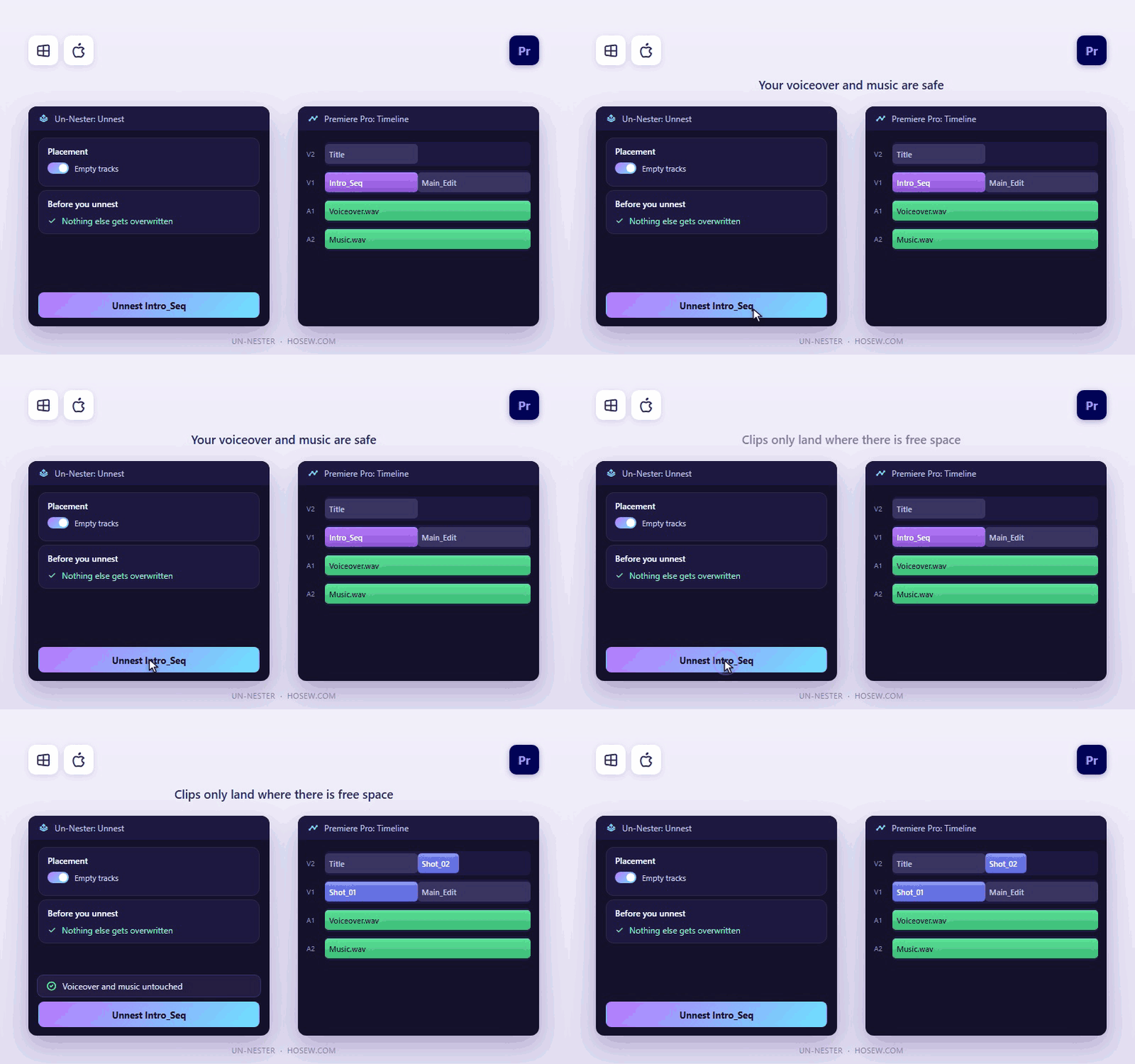
Nothing gets overwritten
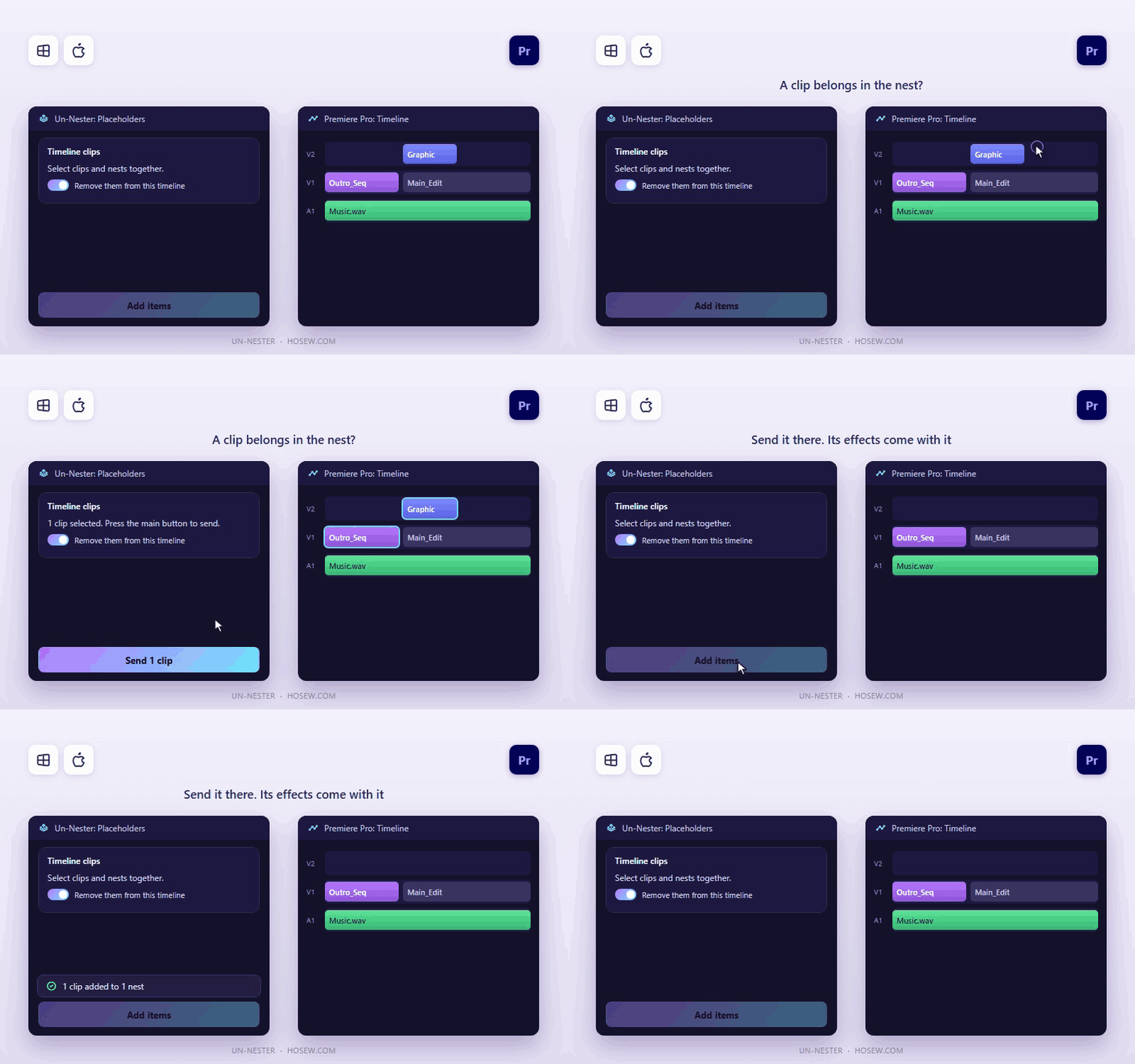
Clips only land in free space, so your voiceover and music stay exactly as they are.
Pick the tracks
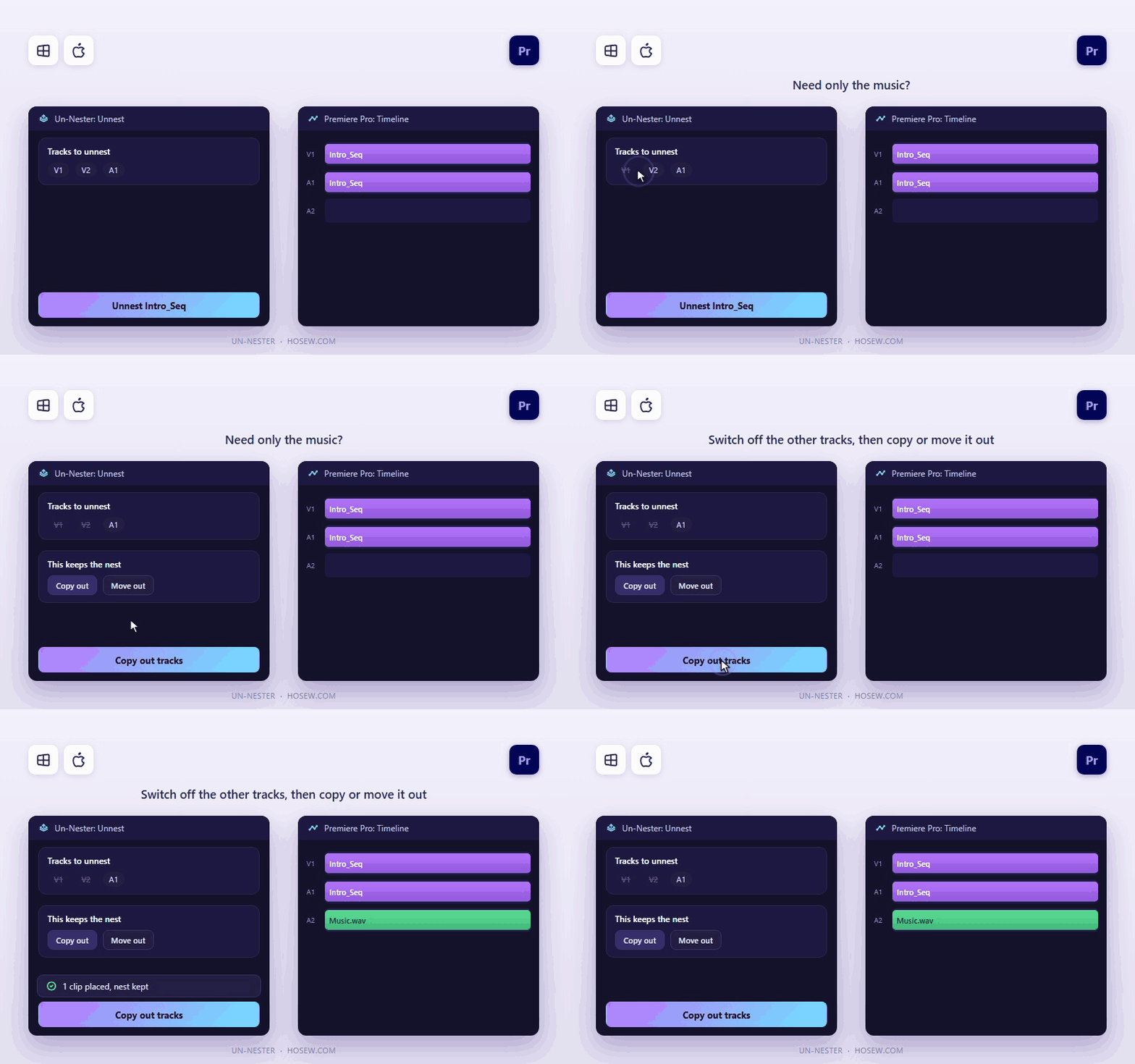
Need only the music? Switch off the other tracks, then copy or move it out of the nest.
Unnest many at once
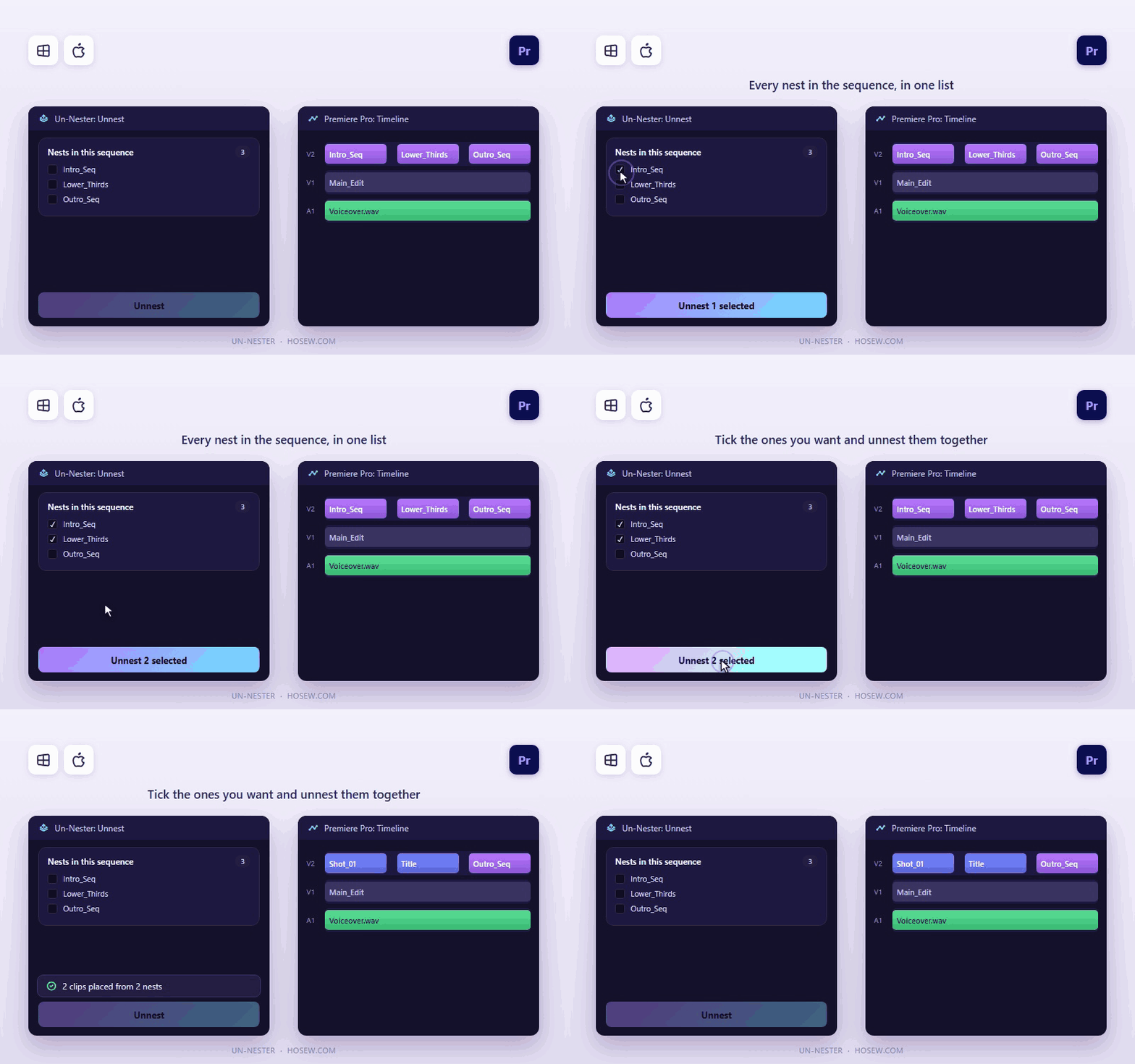
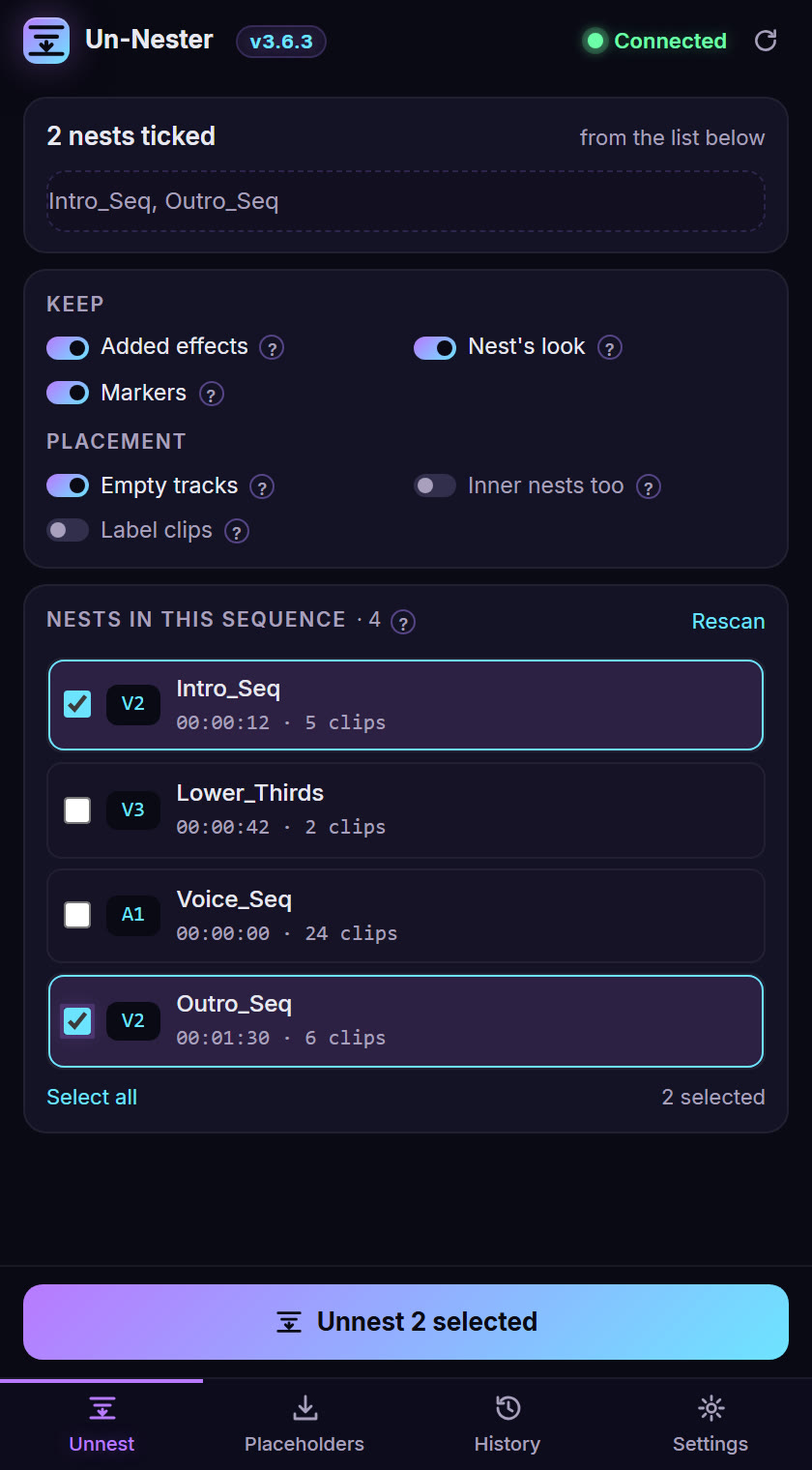
Every nest in the sequence, in one list. Tick the ones you want and press once. Audio-only nests included.
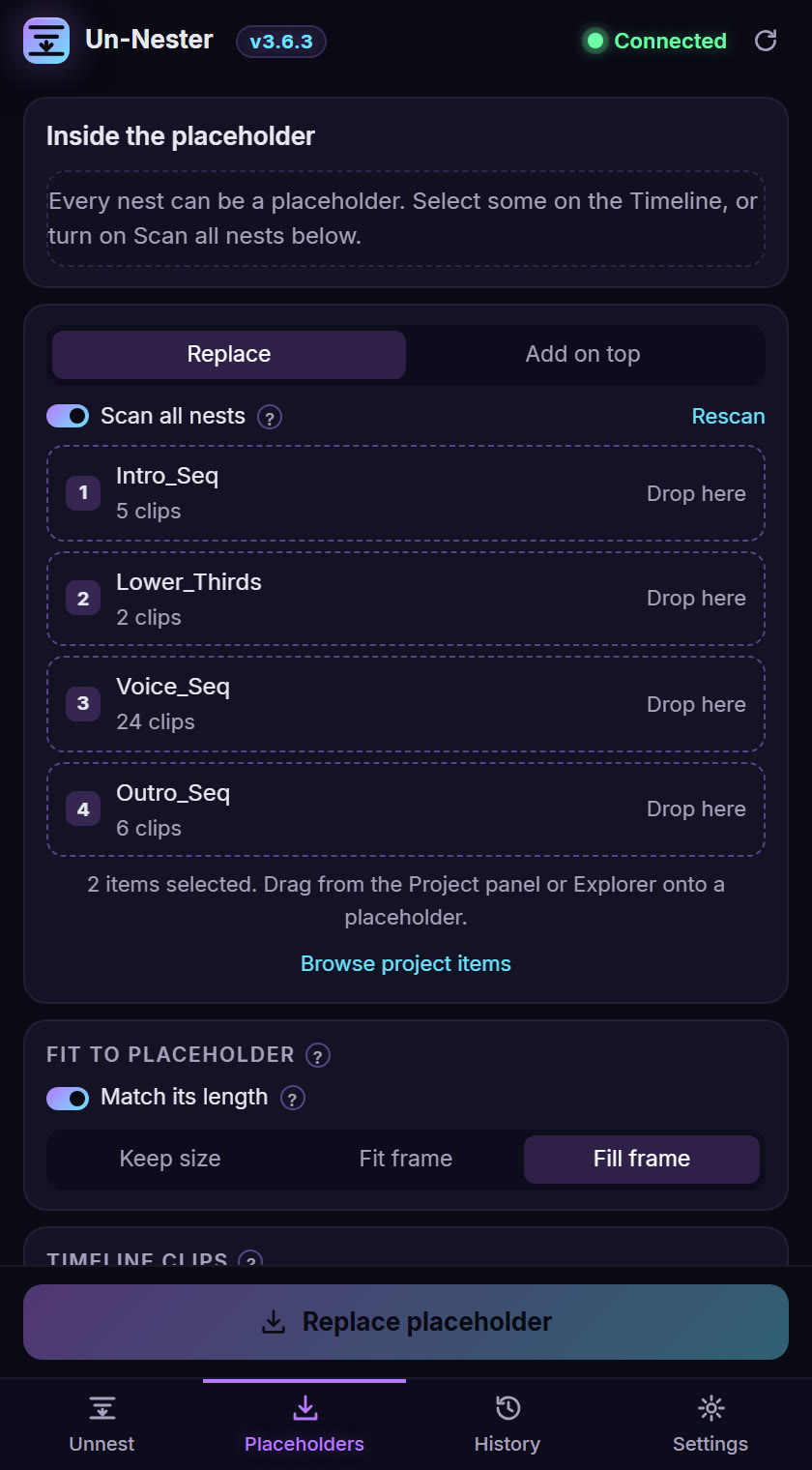
Turn nests into placeholders
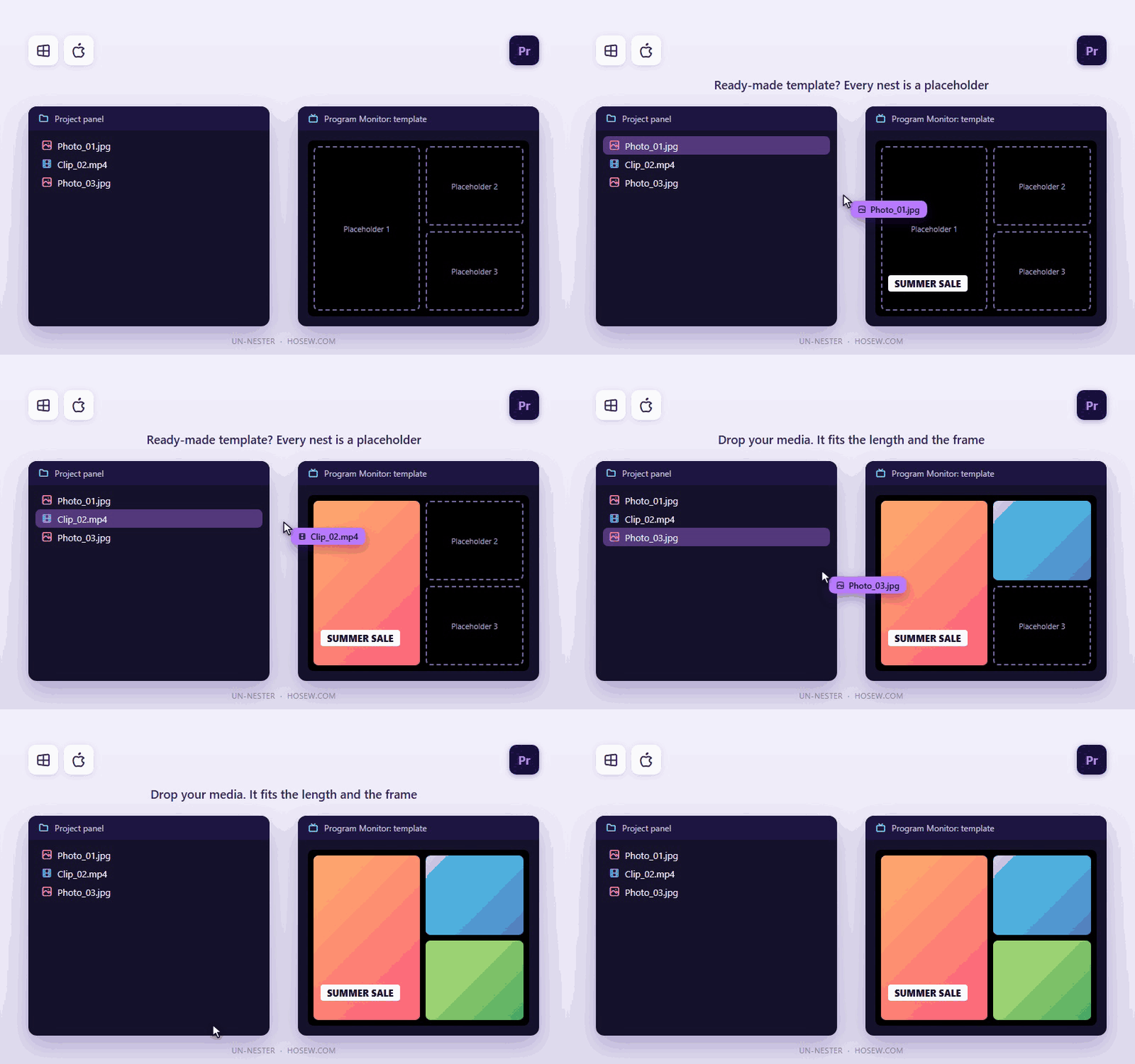
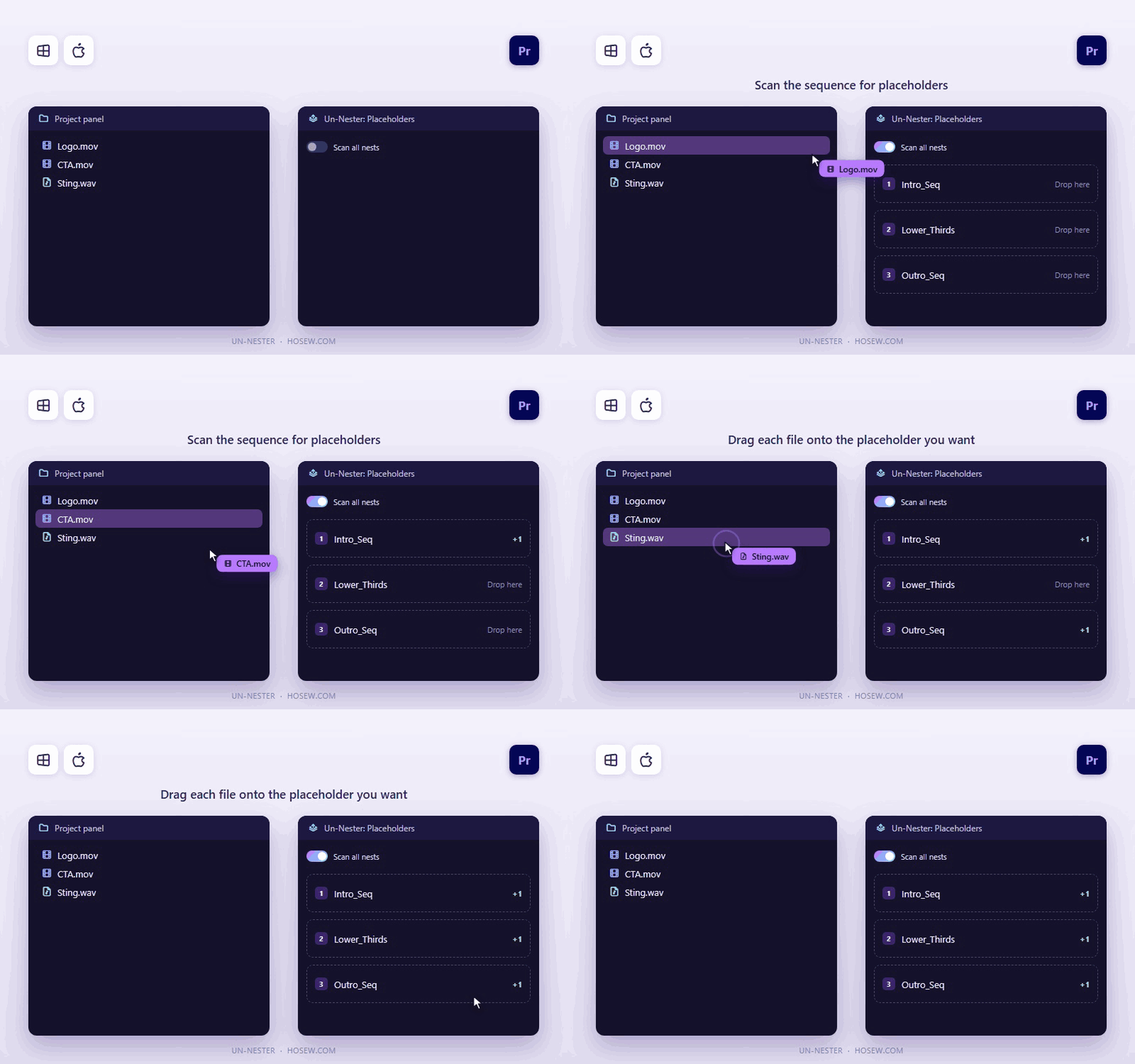
Got a ready-made template? Every nest becomes a placeholder. Drag your photos and videos from the Project panel or Explorer onto the nest you want, and they replace what's inside.
They fit by themselves
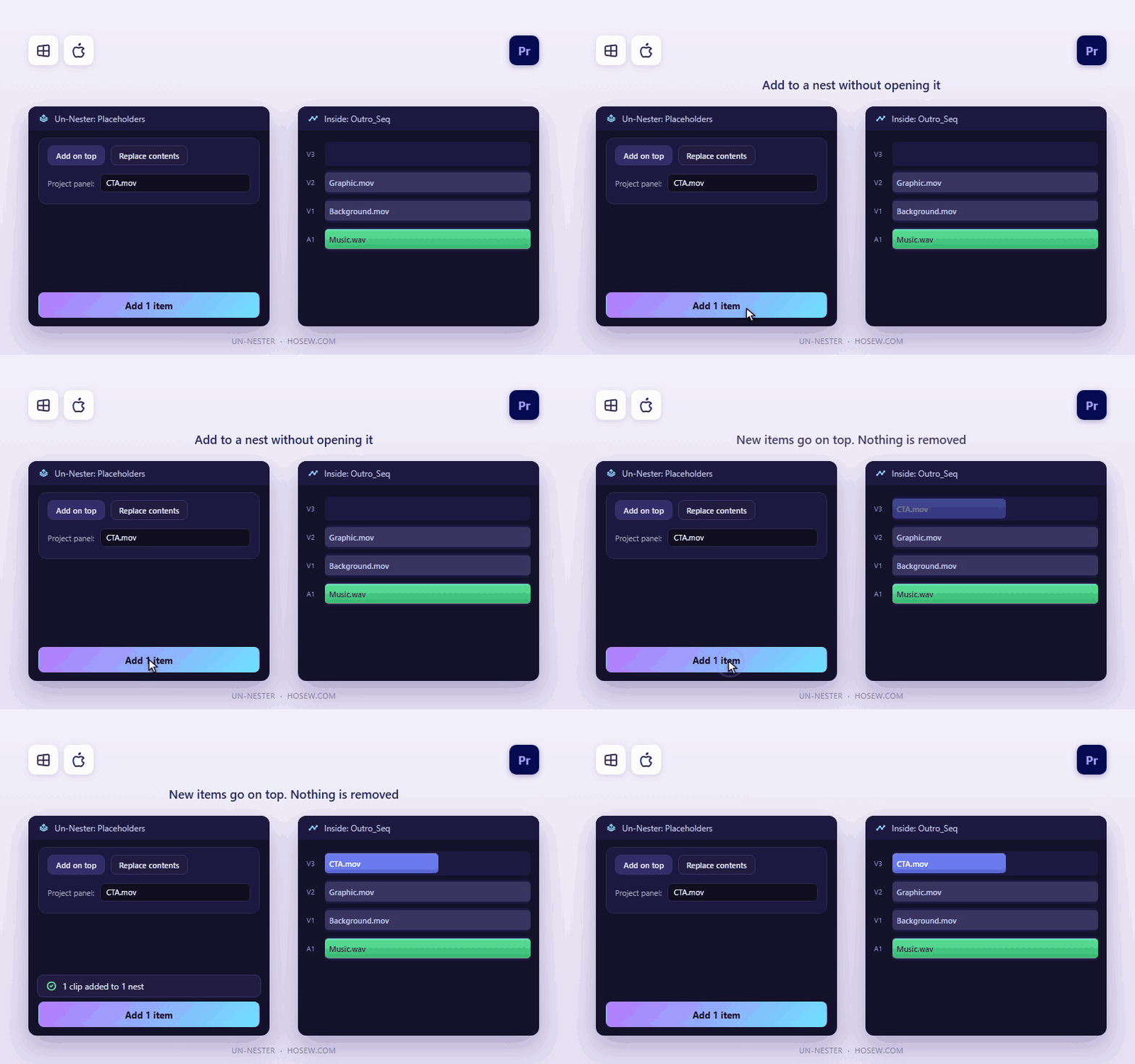
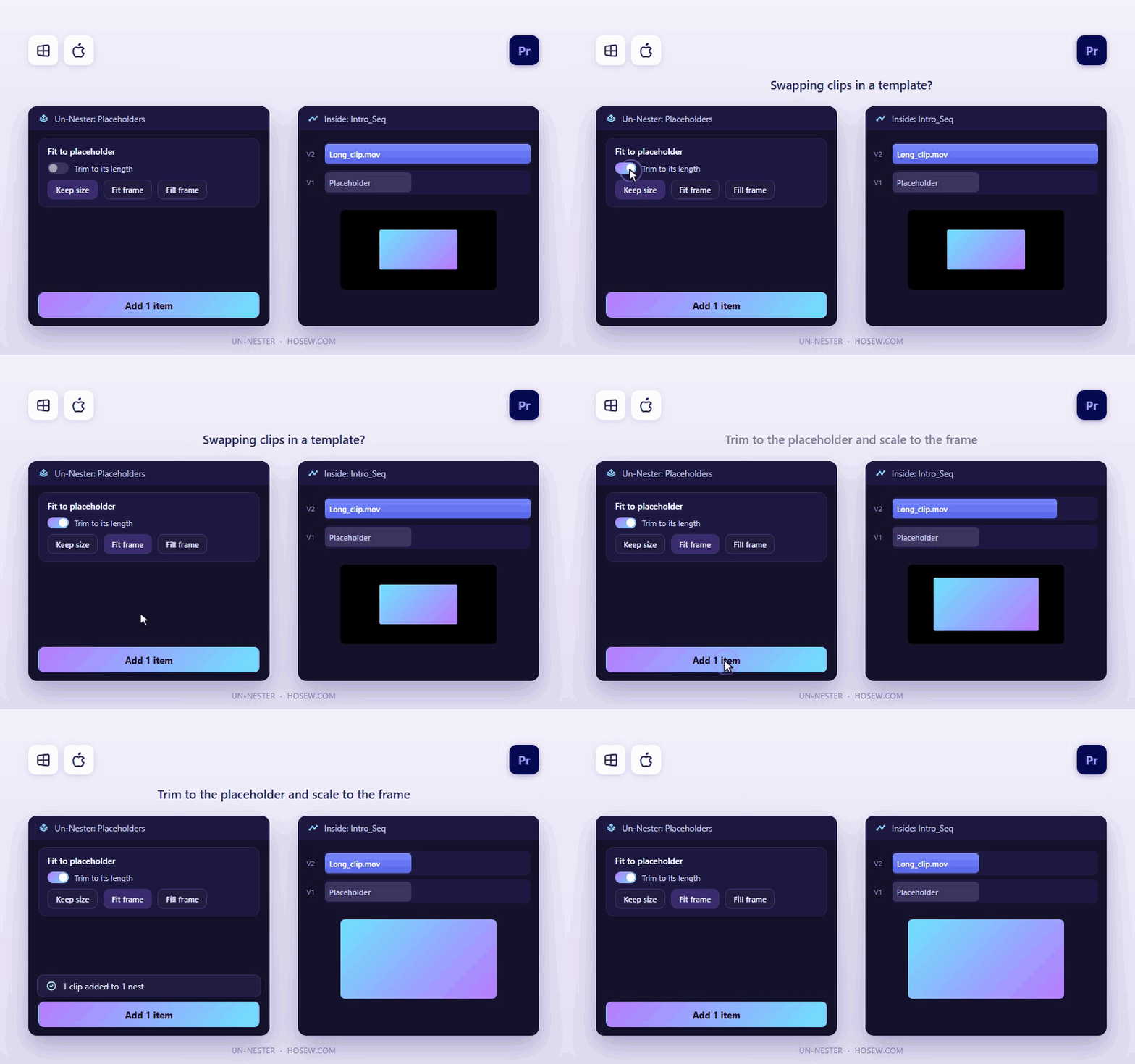
Each photo or video matches the placeholder's length and fills the frame. You can also add on top of what's in the nest instead of replacing it.
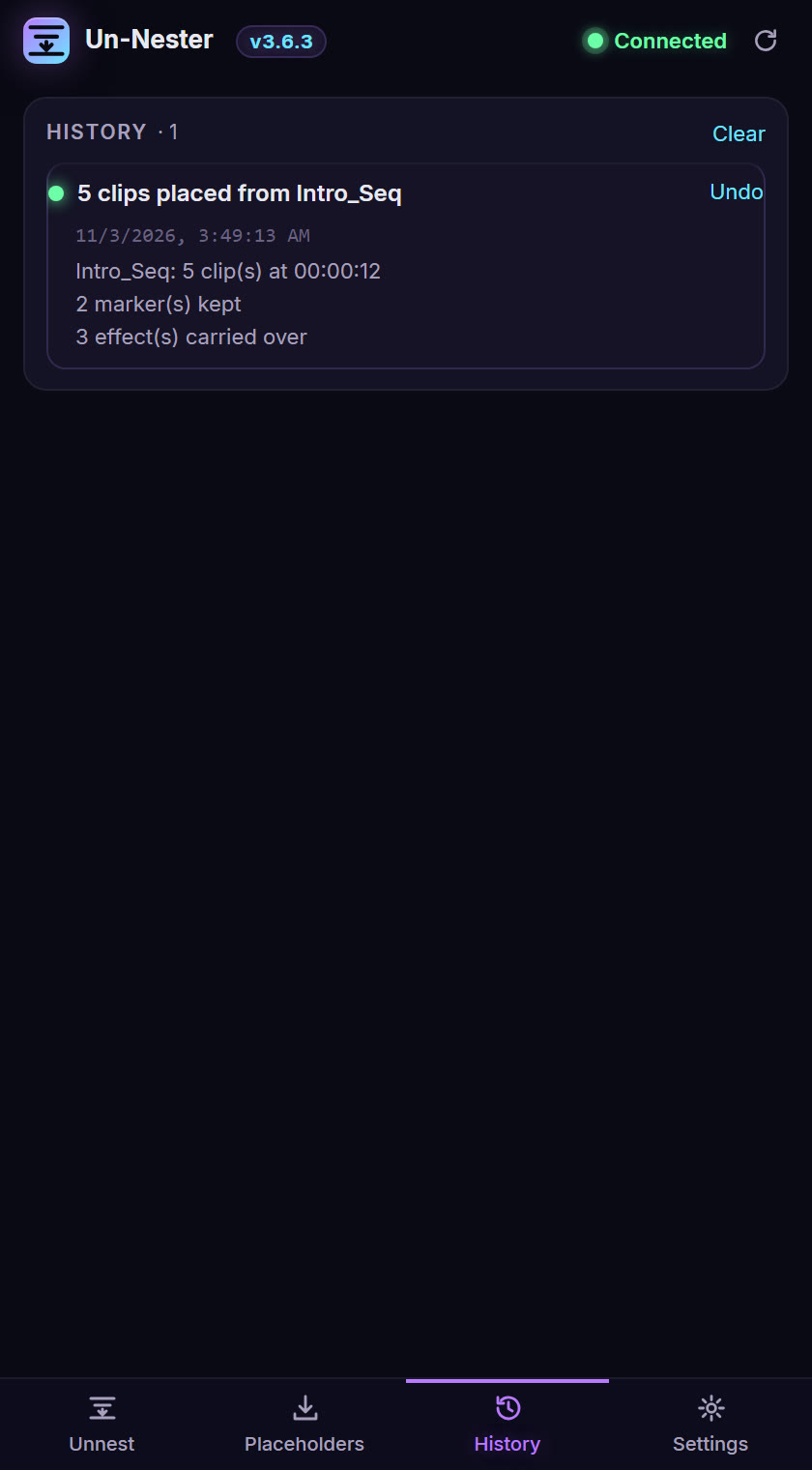
Undo any action
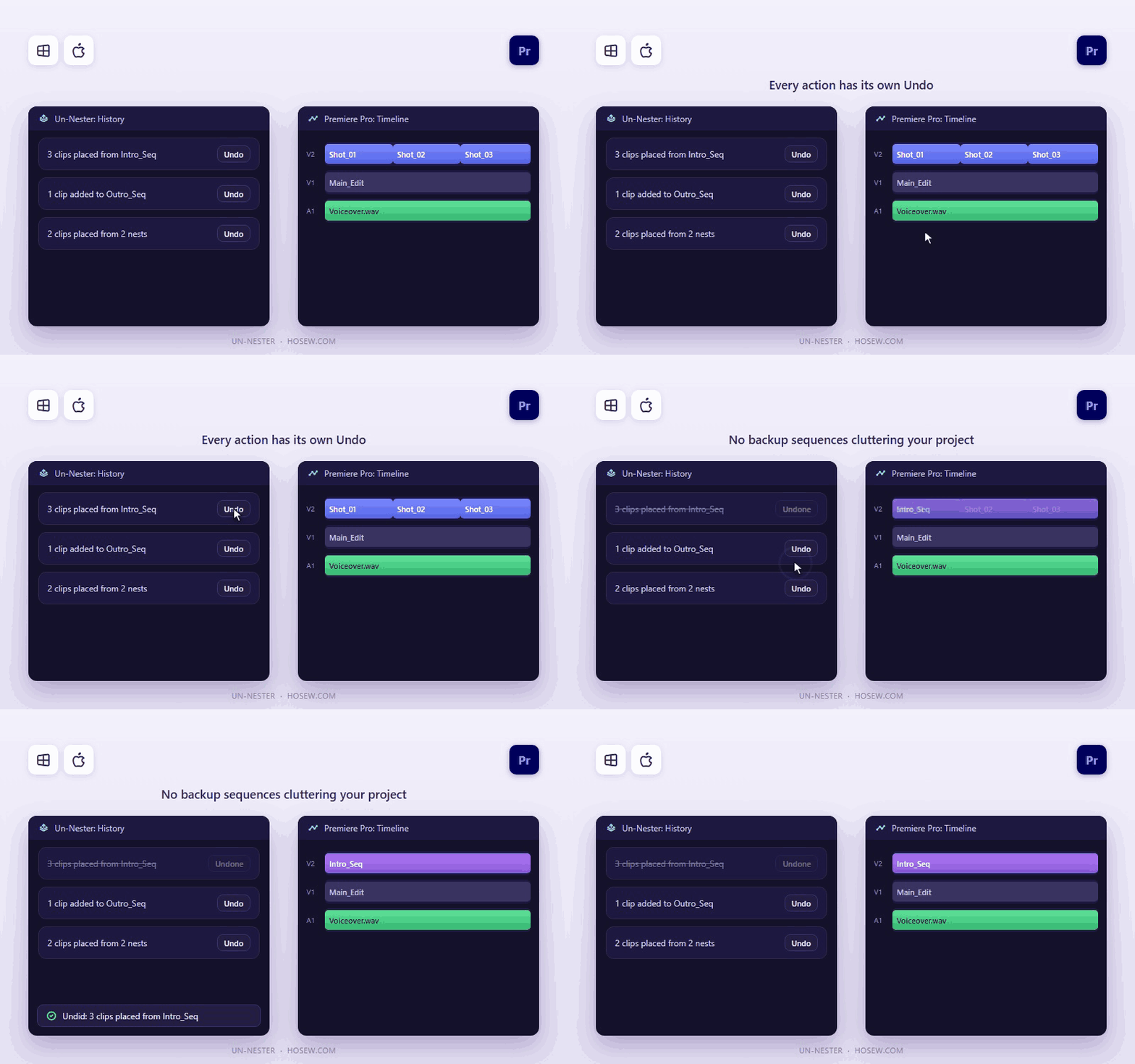
Every action in History has its own Undo, with no backup sequences cluttering your project.
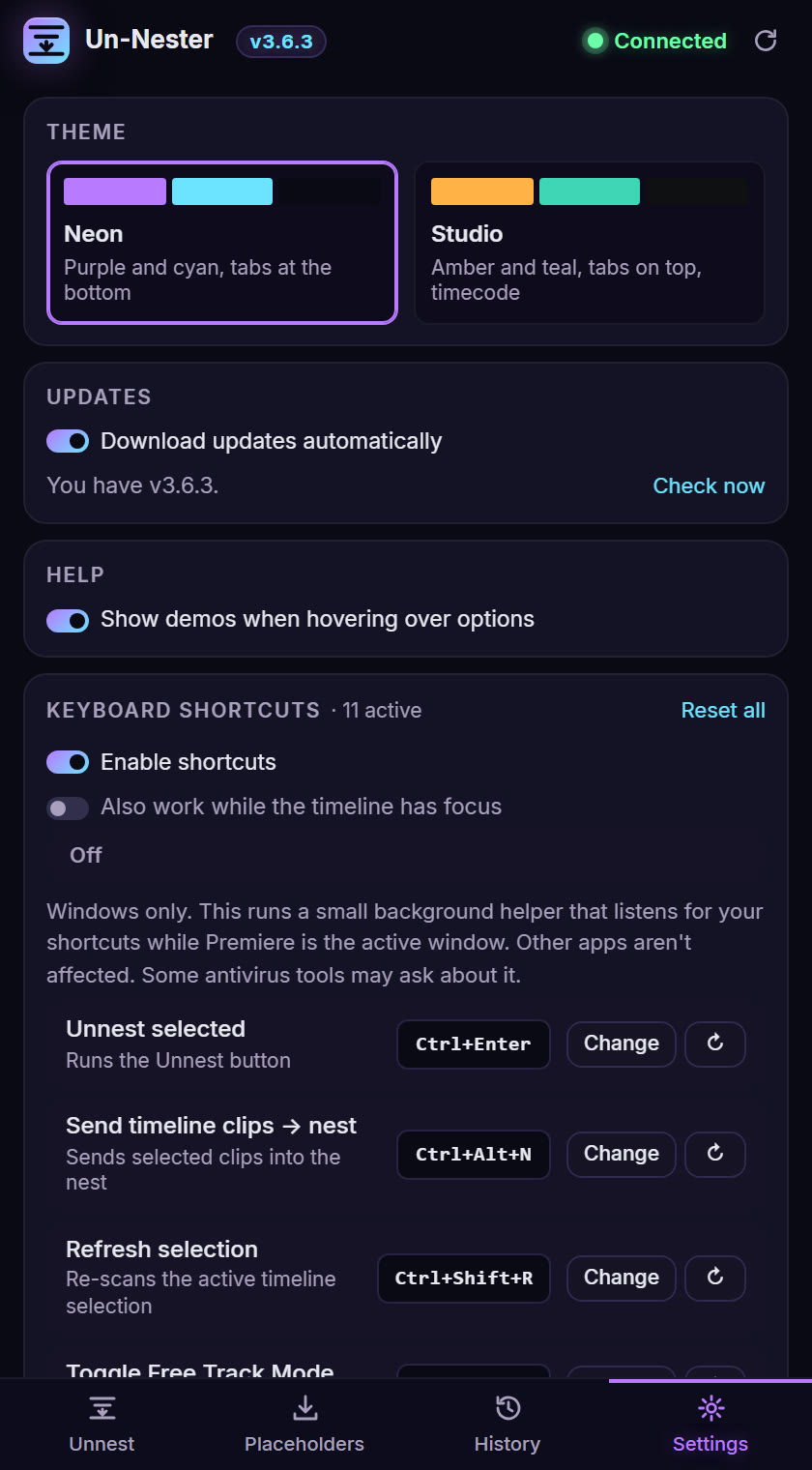
Simple licensing and updates
One active device at a time; sign out to move to another computer. New versions download by themselves: press Reload to install.
See it in action
Short clips of the real panel.
Get started in three steps
Install the panel
Signed .zxp installers for Windows and macOS, or the one-click script installer.
Start your free trial
From the activation screen: 7 days, all features, no card, one trial per computer.
Click a nest, then unnest
Check the preview, press Unnest, and undo any action from History. New versions download by themselves: press Reload to install.
Screenshots
Frequently asked
Which apps and systems does it support?+
Un-Nester works with Premiere Pro 2024 and newer, on Windows 10/11 (64-bit) and macOS (Intel and Apple Silicon).
Can I try it before buying?+
Yes. Start a free 7-day trial from the activation screen inside the plugin: all features, no card, one trial per computer.
How do I install it?+
You get signed .zxp installers plus a one-click script installer. Install, open the panel in Premiere Pro, then activate with your license key.
How many computers can I use it on?+
One license is active on one device at a time. Sign out inside the plugin to move it to another computer. It works offline for 7 days between online checks.
Do I get future updates?+
Yes. Updates within version 3 are free. New versions download by themselves, then press Reload to install.
What if it doesn't work for me?+
Ask for a refund within 14 days and you get it, no questions asked. You can also message support on WhatsApp +20 155 155 3467 or at support@HosEw.com.
Ready to try Un-Nester?
Get it for $9 instead of $15 while the launch offer lasts — or message us on WhatsApp for an even lower price.